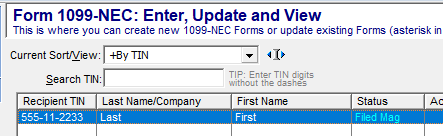
(SELF FIING CUSTOMERS, PLEASE SCROLL DOWN)
You may have completed your Service Bureau eFiling upload and marked the record for CFS filings and the software will not allow you to create the NEC state direct filing.
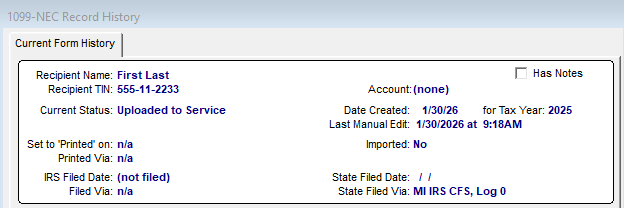
Here is an example for Michigan 1099-NEC and in the audit trail shows that it was filed by IRS CFS, but we need to create a state direct filing upload.
1) Please begin by making a backup of your data files. When you exit the software, you will be prompted to create a backup automatically. If you are not prompted, manually make a copy of the C:\1099 Pro\Pro99T25\Data folder. For added precaution, you may also copy the entire Pro99T25 folder.”
2) Launch the software and navigate to the Service Bureau Session screen. Highlight the session that included the Federal CFS filing, then click Reset (Void) Upload. This action will not affect the federal filing already completed by the Service Bureau. It only resets the federal and state filing status within the software.
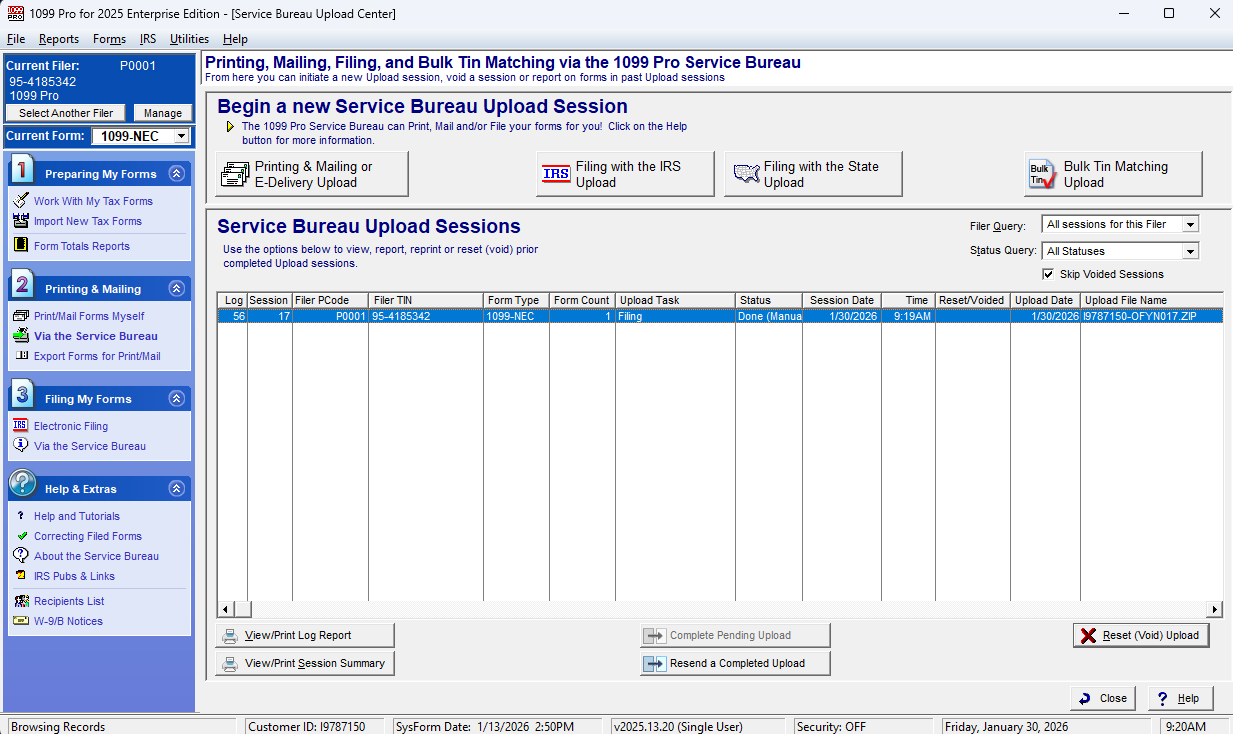
3) After the reset, the audit trail should show both IRS and State as ‘Not Filed.’” 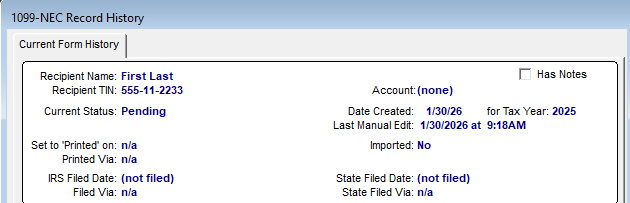
4) Create a new Service Bureau ‘Filing with the State Upload.’ The record should be picked up automatically. Complete this pending upload to file with the state. Please note that this is an additional paid service and will be invoiced. In the Upload Task column, you should see the state associated with the upload.
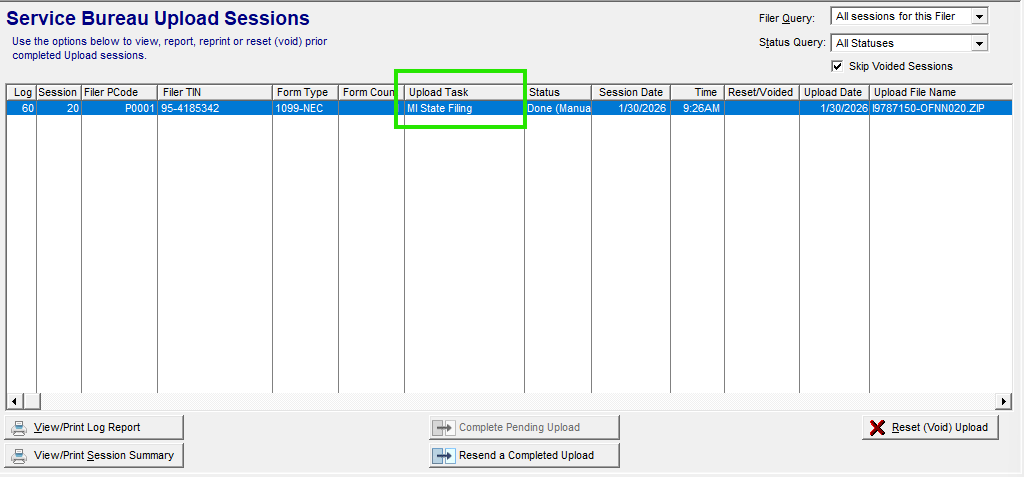
5) After completing the state upload, review the audit trail again. The record should now indicate that it was filed directly with the state.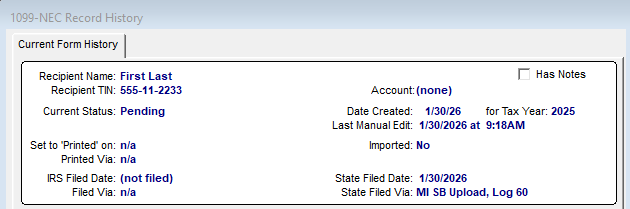
6) How to restore the IRS filed status for these records.
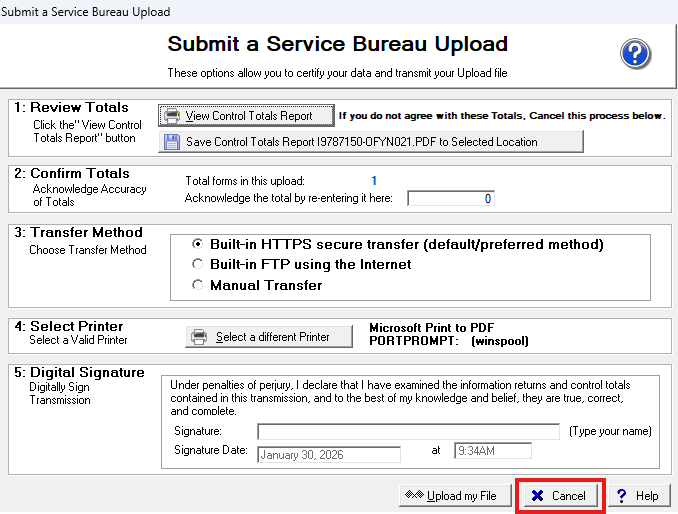
Go to the Service Bureau menu and create a ‘Filing with the IRS Upload.’
IMPORTANT: Do not complete this pending upload. Completing it would place the file back into the process stream and resend it to the IRS. At the ‘Submit a Service Bureau Upload’ screen, simply select Cancel. This will show as filed under "work with my tax forms" in the software, which supports corrections processing.
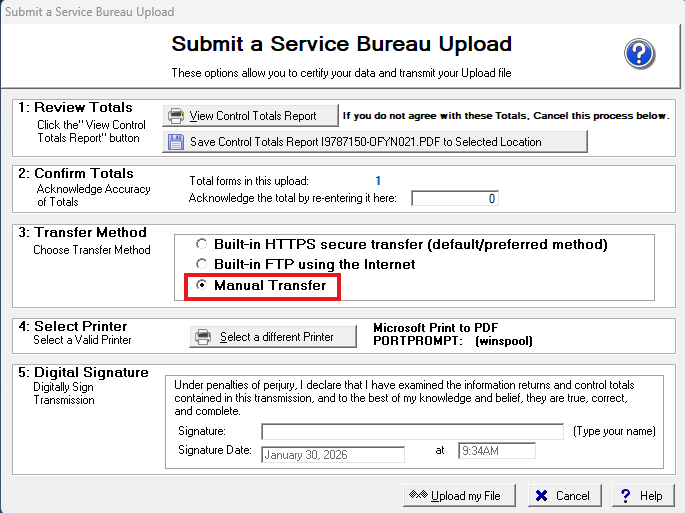
Alternatively, you can select Manual Transfer to mark the session done, but DO NOT UPLOAD THE FILE TO THE SERVICE BUREAU.
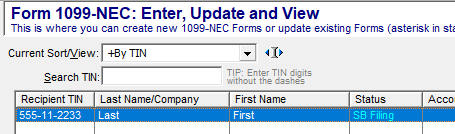
7) Under ‘Work With My Tax Forms,’ your records should show a status of ‘SB Filing'. The records will now show IRS Filed and you may proceed to the create corrections if necessary.
1) Please begin by making a backup of your data files. When you exit the software, you will be prompted to create a backup automatically. If you are not prompted, manually make a copy of the C:\1099 Pro\Pro99T25\Data folder. For added precaution, you may also copy the entire Pro99T25 folder.”
2) Launch the software and navigate to the Electronic Filing 1220 Session screen. Highlight the session that included the Federal CFS filing, then click Reset (Void) Session. This action will not affect the federal filing already submitted to IRS FIRE. It only resets the federal and state filing status within the software.
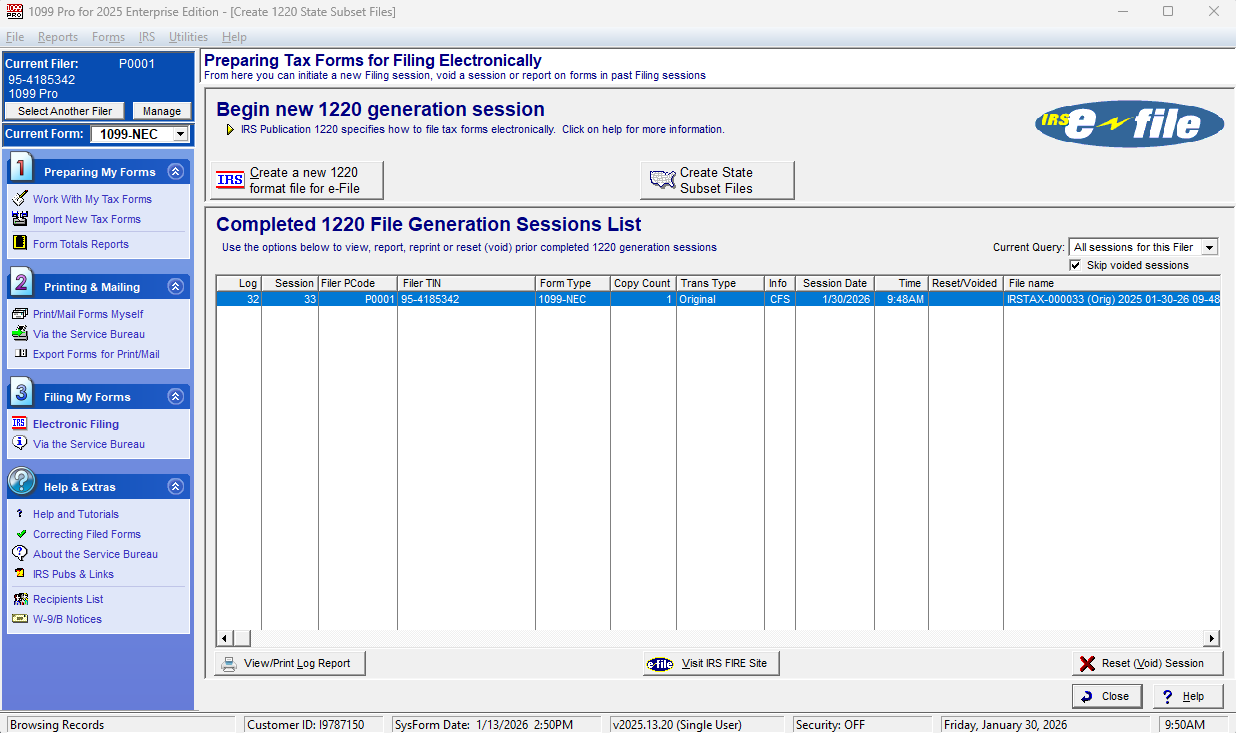
3) After the reset, the audit trail should show both IRS and State as ‘Not Filed.
4) Create a new State Subset File. The record should be picked up automatically. Submit the transmittal file with the state. In the Session List Trans Type column, you should see the state associated with the transmitted file.
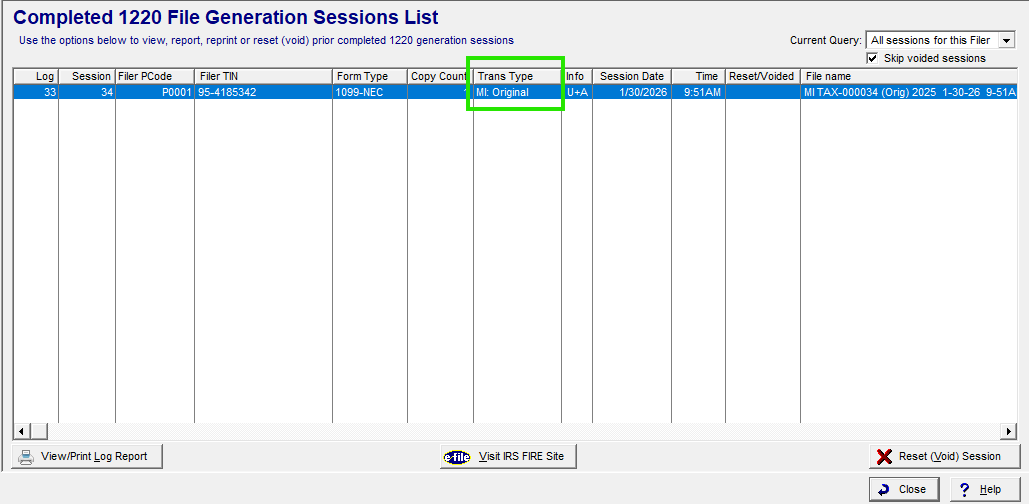
5) After completing the state subset file, review the audit trail again. The record should now indicate that it was filed with the state.
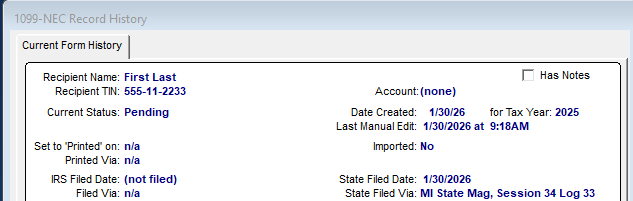
6) How to restore the IRS filed status for these records. Go to Electronic Filing menu and Create a new 1220 format for e-File.
IMPORTANT: Do not re-file this with FIRE if you have already submitted to FIRE. Discard the file to avoid accidental filing.
7) Under ‘Work With My Tax Forms,’ your records should show a status of ‘Filed Mag'. The records will now show IRS Filed and you may proceed to the create corrections if necessary.